The Invisible Exhaustion: Why Our Screens Are Quietly Draining Our Vision
I remember sitting at my desk a few months ago, literally dreading the moment I had to turn on my computer because my eyes constantly felt like they were on fire. I was wasting money on expensive eyedrops every week and sleeping with cold, damp towels over my face just to get a few minutes of relief. It was not until I stopped looking for quick chemical fixes and actually changed my physical display setup that I finally got my focus and my life back.
You close your eyes at the end of a long workday, but the burning sensation does not go away. It feels as if someone rubbed fine sand directly into your eyes. Soon, a dull headache begins to throb right behind your temples, making it impossible to relax.
This is the silent price we pay for our daily screen time. We spend hours staring at glowing displays without realizing how hard our eyes are working. Our eyes were never naturally designed to focus on a bright, flickering light source for hours on end.
The physical discomfort is bad enough, but the mental drain is often worse. You might find your focus slipping before your workday is even half over. Rereading the same email three times becomes a common habit.
Many people try to solve this by buying expensive eye drops or trying to blink more often. But these are only temporary fixes for a deeper, constant problem. The real issue is that your monitor is actively screaming light directly at your retinas.
This constant stress affects how we sleep, how we work, and how we feel every single day. It turns simple office tasks into a painful test of physical endurance. Fortunately, you can change this setup without walking away from your digital life.
Let us look at some practical, immediate ways to adjust your environment. You can make simple changes to your display settings today to find immediate relief.
Taming the Blind Waves: Balancing Ambient Light and Display Brightness
The most common mistake people make is leaving their screen brightness on the default factory settings. If your monitor is significantly brighter than the room around you, your eyes have to work twice as hard.
Think of it like shining a bright flashlight directly into your eyes in a pitch-black room. This is exactly what a high-brightness monitor does in a dimly lit office. Your pupils must constantly shrink and expand to adjust to the massive contrast.
To fix this, look at your monitor and then look at the wall behind it. If your screen looks like a bright light bulb, your brightness is set too high. If the display looks dull, grey, and lifeless, it is likely too dim. You want your monitor to blend in naturally with the general lighting of your room. Adjust your brightness slider until the screen matches the ambient glow of your workspace.
This simple balance reduces the strain on your pupillary muscles almost immediately. It is one of the easiest and most effective adjustments you can make.
A Quick Five-Second Screen Brightness Test
Here is a simple test you can run right now to check your current brightness level. Open a blank white document, such as a clean notepad file or a blank web page.
Now, hold a plain white sheet of printer paper next to your monitor. Compare the brightness of the physical paper to the white light coming from the screen.
If your screen looks much brighter than the paper, turn your monitor brightness down. If the paper looks brighter than your screen, your display is too dim.
This physical comparison gives you a reliable baseline without having to guess. Try to perform this test whenever the lighting in your room changes.
"If you want to see a live demonstration of how to perfectly match your monitor brightness with your room lighting, watch this quick visual guide before reading about color temperatures below."
Shifting Color Temperature: Giving Your Screen a Warm Amber Glow
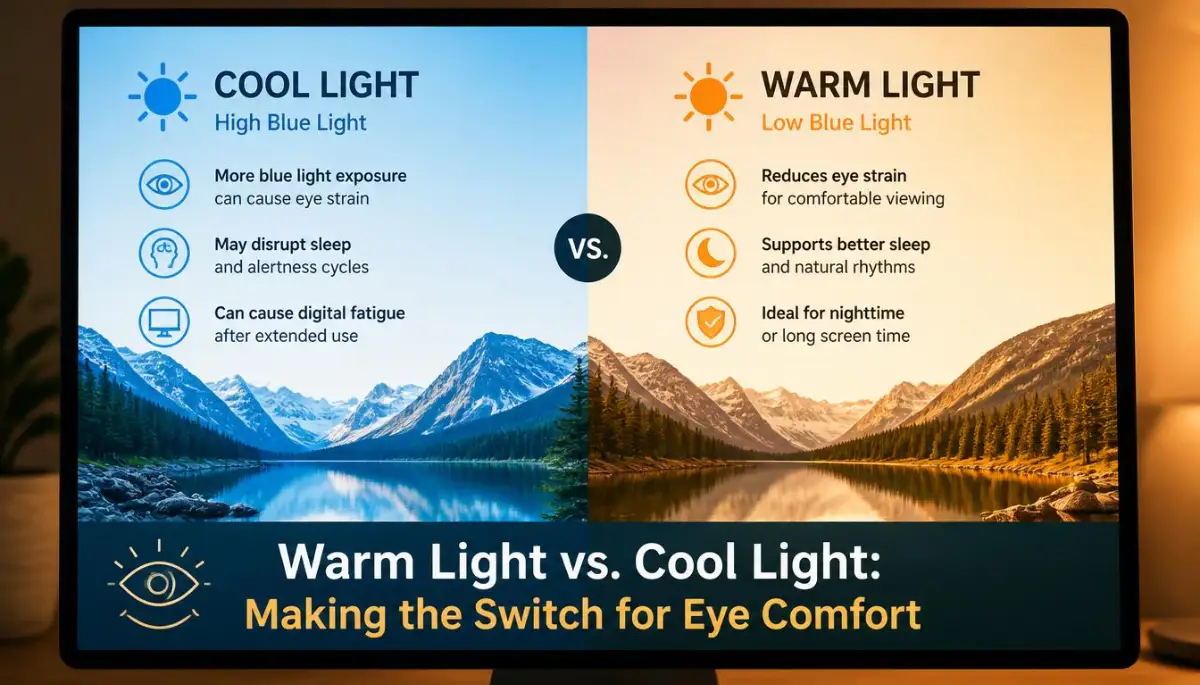
Most modern screens emit a cool, blue-heavy light by default. This blue light mimics the natural midday sun, which tells your brain to stay awake and alert.
While this is useful at noon, it is highly stressful for your eyes during long work sessions. Cool blue light scatters more easily than warm light, which makes it much harder for your eyes to focus clearly. To counter this, we need to shift our display color temperature to the warmer end of the spectrum. Warm light uses longer wavelengths that are much gentler on the human eye.
You do not need to buy expensive blue-blocking glasses to get this protective benefit. Most operating systems now have built-in software tools that can do this for you.
Setting Up Built-in Warm Light Features
For a long time, I made the mistake of keeping my screen colors incredibly bright and vivid because I thought it looked better. Once I forced myself to set my system's amber warm filter to turn on automatically every evening, I realized how much strain I was putting on my eyes for no good reason. My eyes felt relaxed almost instantly, and I did not lose any actual display quality while reading or typing.
On a Windows PC, search for a setting called Night Light in your display settings menu. On a Mac or an iPad, look for the feature called Night Shift.
You can schedule these features to turn on automatically as soon as the sun starts to set. This shifts your screen from a harsh blue glare to a warm, soft amber tint.
For Android users, look for Eye Comfort Shield or Blue Light Filter in your quick settings panel. Adjust the slider until the screen feels comfortable to look at without looking overly orange.
You will notice an immediate sense of physical relief in your eyes. The display will feel much less intense, especially during early morning or late-night reading sessions.
Myth vs. Reality: The Truth About Screen Warmth
- Myth: You must buy special computer glasses to protect your eyes from blue light.
- Reality: Your screen already has the software built-in to filter blue light for free. Adjusting your settings at the source is actually much more effective.
- Myth: Warm screens make text look blurry and harder to read.
- Reality: Warm screens actually improve readable contrast, making it easier for your brain to process words.
The Contrast Control: Making Text Stand Out Without Effort
When your screen contrast is set too low, text begins to blend directly into the background. Your eyes must strain to separate the letters from the empty white space.
On the other hand, if the contrast is set too high, the edges of the text look harsh and sharp. This extreme sharpness also causes your eye muscles to fatigue quickly.
Most monitors allow you to adjust the contrast using physical buttons on the frame. Aim for a contrast level of about 50% to 70% as a safe starting point.
This level allows black text to look crisp and readable without creating a burning sensation on your retinas.
Dark Mode vs. Light Mode: Which is Better for Your Eyes?
Let us compare these two popular visual styles to see which option actually protects your vision.
If you have astigmatism, you might find that dark mode makes text harder to read. The white letters on a dark background can appear to bleed or blur together.
If you experience this, stick to light mode but keep your screen brightness low and your color temperature warm.
Adjusting Text Size and Scaling for Comfort
Do you find yourself leaning forward toward your desk to read small text on your screen? Leaning forward ruins your physical posture and puts extra strain on your neck, back, and eyes.
The easiest fix is to increase your operating system's display scaling. This makes everything on your screen larger without lowering your screen's actual resolution.
On a Windows computer, go to Display Settings and find the Scale and Layout menu. Try changing the scale from 100% to 125% or 150% to see the difference.
On a Mac, you can adjust this easily under System Settings by choosing a larger text layout. Your eyes should never have to squint to read a basic news article or a spreadsheet.
Keep your screen about an arm's length away from your face at all times. If you cannot read the text comfortably from that distance, make the font bigger.
The Golden Rule of Screen Placement
Your monitor should ideally sit about 20 to 30 inches away from your face. This is roughly the distance from your shoulder to your fingertips when you stretch your arm out.
The top of your monitor screen should be at or slightly below your natural eye level. This position forces you to look slightly downward while you work.
Looking downward keeps your eyelids slightly lower, which helps prevent dry eyes by keeping them covered. If you look upward, your eyes open wider, causing your natural tears to evaporate much faster.
Fixing Screen Glare and Reflections
Glare is one of the most common causes of eye strain that people completely ignore. When light from a window or a lamp reflects off your screen, your eyes must fight to see past it.
You might not notice the reflection consciously, but your brain is constantly working to filter out the distraction. This continuous effort leads to rapid fatigue and tension. Position your desk so that windows are to the side of your monitor, rather than directly in front of or behind it. This prevents the sun from shining directly onto your screen or into your eyes.
If you cannot move your desk, consider using an anti-glare screen protector. These simple matte films attach to your screen and diffuse harsh reflections.
The Importance of a Clean Monitor
Dust, fingerprints, and smudges on your display scatter the light coming from your screen. This scattering reduces contrast and forces your eyes to struggle to focus on the text beneath the dirt.
Get into the habit of wiping your monitor with a clean microfiber cloth once a week. Avoid using harsh household chemicals that can strip away the delicate anti-glare coating on your screen.
A clean display offers sharp, clear images that require much less focusing effort from your eyes.
Combining Settings with Healthy Eye Habits
Adjusting your monitor settings is only the first half of protecting your vision. You must also give your physical eye muscles a regular break during long sessions.
Think of your eyes as muscles that need movement to stay healthy. If you held a heavy object out in front of you for eight hours, your arm would hurt.
Staring at a screen at a fixed distance for hours does the exact same thing to your eyes. They need regular rest to recover their natural flexibility.
Setting Up an Easy Eye Rest Routine
Try to practice a simple focus exercise every twenty minutes while you are working. Look away from your screen at an object at least twenty feet away for twenty seconds.
This practice forces your eye muscles to relax and resets your focusing system. It also naturally encourages you to blink, which coats your eyes in protective moisture.
You can use free browser extensions or simple phone timers to remind you to take these short breaks. Taking care of your eyes is a simple process that pays massive dividends in your daily comfort.
Mastering Your Display Workspace: Advanced Secrets for Lifelong Comfort
Many display screens use a technology called Pulse-Width Modulation (PWM) to control brightness. PWM works by turning the screen background light on and off very quickly to make the screen look dimmer.
While you cannot see this rapid flickering with your bare eyes, your brain still processes it. This constant flickering forces your eye muscles to adjust thousands of times every single minute.
To prevent this invisible strain, check if your monitor features "Flicker-Free" technology. This hardware design uses direct current to dim the screen, which completely eliminates the rapid light flashing.
Adjusting Your Monitor Refresh Rate for Smooth Motion
Another simple hardware adjustment involves changing your display refresh rate in your system settings. Most basic monitors are set to a standard rate of 60Hz, which means the image updates sixty times per second.
If your monitor supports a higher refresh rate, like 120Hz or 144Hz, enable it immediately. A higher refresh rate makes scrolling through documents and moving your mouse much smoother.
This smoothness allows your eyes to track moving elements on the screen with significantly less physical effort. You will notice that reading long, scrolling web pages becomes much more comfortable.
Bias Lighting: Balancing the Light Behind Your Monitor
Using your screen in a room with a dark background wall creates an extreme contrast boundary. This visual boundary forces your eyes to focus on the bright screen while constantly struggling with the darkness around it.
To solve this, you can install a simple LED light strip directly on the back of your monitor. This setup is known as bias lighting, and it projects a soft, gentle glow onto the wall behind your screen.
The background glow raises the average light level of your immediate workspace without shining any harsh light directly into your eyes. It softens the harsh transition between your bright screen and the dark room walls.
According to optical research from the National Center for Biotechnology Information, keeping an equal balance of background light reduces fatigue during close-up visual tasks. You can purchase a simple USB-powered LED light strip for a very low cost to build this setup.
The Power of Custom Browser Stylesheets and Reader Extensions
Most websites use bright white backgrounds with small, thin black text. This default web design can be incredibly harsh on sensitive eyes during long reading sessions.
You can install browser extensions like "Dark Reader" or "Reader View" to change how websites display content. These tools allow you to turn bright backgrounds into soft sepia or muted grey tones.
These extensions also simplify the layout of web pages by removing distracting ads and flashy sidebars. This clean format lets you focus on the actual content without visual noise exhausting your brain.
When setting up your workstation as a remote professional, integrating these ergonomic habits is just as important as managing your finances, like utilizing smart tax deductions for home-based solopreneurs. Taking control of your digital workspace setup ensures you can work comfortably for many years to come.

The Hidden Traps: Blind Spots in Your Daily Screen Routine
Many people make the mistake of buying cheap blue light blocking glasses and assuming their eyes are perfectly safe. They wear these glasses while keeping their screen brightness high, sitting too close, and ignoring regular breaks.
This habit creates a false sense of safety while the actual physical causes of eye strain continue to damage their sight. No pair of glasses can protect your eyes if you stare at a harsh, dusty screen from ten inches away.
Another common habit is working in a completely dark room, often called the "gamer cave" setup. While this environment might feel cozy, it forces your pupils to open wide to let in the dark room light.
This wide opening allows the harsh light of your screen to flood your retinas with intense, focused energy. Over time, this daily exposure leads to chronic headaches, dry eyes, and severe sleep disturbances.
Treating the Symptoms Instead of the Real Root Cause
When people feel their eyes getting dry and itchy, they often reach for chemical eye drops to find quick relief. While temporary drops can soothe dry eyes, relying on them too much can wash away your eye's natural, healthy oils.
This constant cycle makes your eyes even drier once the drops wear off, forcing you to use them more often. Instead of treating the dry sensation with chemicals, you should look at your workspace setup and fix the environmental causes.
Simple steps like blinking fully, drinking plenty of water, and adjusting your screen angle are much more effective long-term strategies. According to standard guidelines on ergonomic safety from the Occupational Safety and Health Administration, fixing your physical workspace is always the first line of defense against office injuries.
Ignoring the Overlapping Signs of Systemic Health Issues
Sometimes, constant eye strain is not just a sign of a bad monitor setup. It can be a warning sign that your body is dealing with deeper physical exhaustion or metabolic changes.
Regular screen breaks encourage physical movement, which is helpful because static desk lifestyles are connected to broader metabolic risks like spotting the subtle signs of prediabetes. Taking care of your eyes also encourages you to take care of your entire body.
Ignoring chronic mental and physical fatigue can quickly pull you into a spiral of exhaustion, much like the process of overcoming college burnout requires recognizing the earliest warning signs. If you continuously ignore these signals, your daily productivity and mental peace will suffer.
Your Daily Eye Care Checklist: Simple Habits for Lasting Clarity
To protect your eyes over the long term, you do not need to spend money on expensive gadgets. You only need to follow a few simple, daily habits to keep your eyes feeling fresh and healthy.
Use this quick checklist every morning before you start your digital workday to ensure your screen setup is perfectly optimized.
- Clean Your Screen: Use a clean microfiber cloth to wipe away dust and fingerprints that reduce screen contrast.
- Test the Brightness: Hold a plain sheet of white paper next to your monitor and match your screen brightness to it.
- Angle the Monitor: Adjust your screen so the top edge is slightly below your eye level to prevent your eyes from drying out.
- Activate Night Filters: Ensure your system's warm light mode is scheduled to turn on automatically at sunset.
- Step Back: Sit about an arm's length away from your display and increase the text size if you have to lean forward.
Making Small Changes Today for a Happier Workspace
Protecting your eyes does not require you to make massive sacrifices or stop using the technology you love. By taking just five minutes to adjust your brightness, color temperature, and desk layout, you can transform your relationship with your screens.
Your eyes are incredibly resilient, and they will thank you almost immediately once you remove the harsh glare and constant flicker. Start with just one small change today, like turning on your warm light filter, and see how much better your eyes feel tomorrow.
You deserve to work and create in a space that supports your health instead of draining your energy. Take control of your settings, build healthy habits, and enjoy the lasting comfort of clear, strain-free vision.
Fixing these settings completely changed how I feel at the end of my workdays, and I no longer go to bed with a splitting headache. I highly encourage you to take just two minutes to tweak your display settings right now, because your physical comfort is worth far more than a default screen setup.
Disclaimer: This article is for informational and educational purposes only and does not substitute for professional medical advice, diagnosis, or treatment. Always consult with a qualified optometrist, ophthalmologist, or healthcare provider if you experience chronic eye pain, persistent vision changes, or severe headaches.