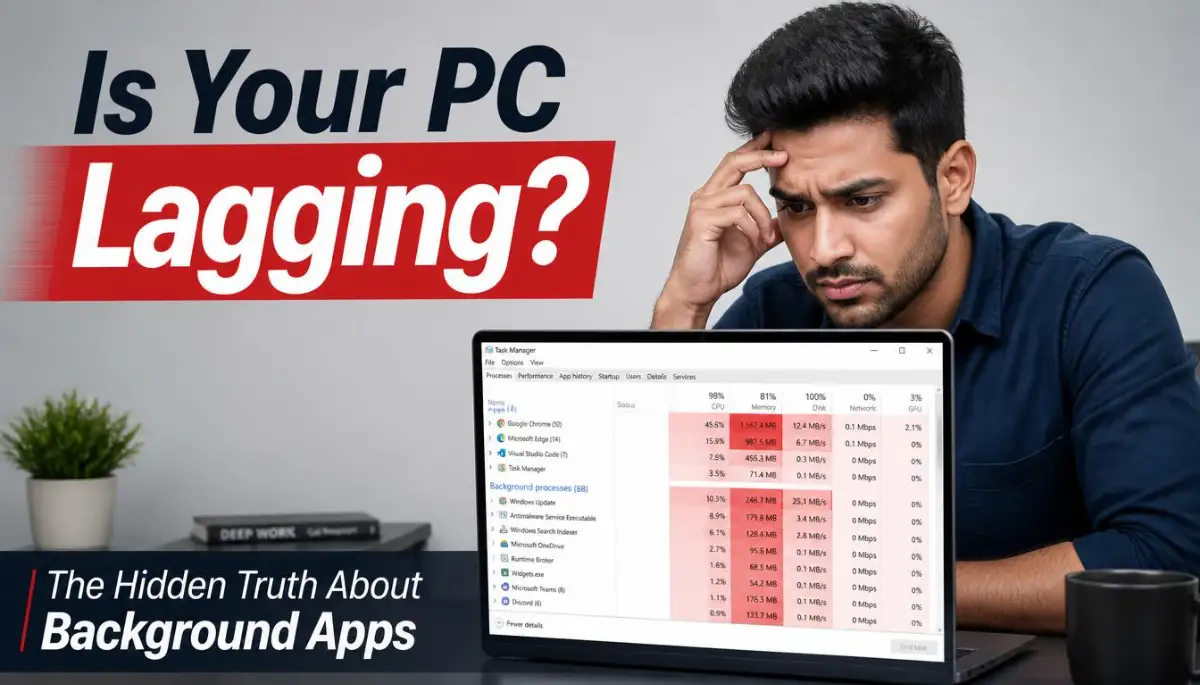
My Frustrating Fight with a Frozen Screen
Is your computer actually working for you, or are you working for your computer? I spent half of my morning yesterday staring at a spinning wheel while a deadline sat inches away from my face. My PC has enough power to run a space station, but it felt like a $2,000 paperweight. I found out that my machine wasn't dying—it was just buried under a mountain of hidden background apps that I never even asked for.
I stared at the blinking cursor, feeling a knot of anger growing in my chest. My expensive computer, which I bought for its high speed, was suddenly acting like an old, rusty machine.
I tried to open a simple web browser tab, and the entire system just gave up. The dreaded spinning wheel of death started mocking me, turning slowly while my deadline got closer.
I felt so helpless and honestly a bit cheated because I keep my files organized. I didn't understand why a machine with so much power could feel so incredibly weak.
It was a moment of pure digital defeat that left me wondering if I needed to spend more money on a new one. I realized then that my computer wasn't broken, but it was being smothered by something I couldn't see.
The Emotional Toll of a Laggy System
When your computer slows down, it is not just a technical problem; it is a mental one. You start your day with a clear plan, but the lag steals your time and your focus.
Most of us rely on our computers for our living, our education, and our connection to the world. When that connection becomes bumpy, we feel disconnected and trapped in a slow-motion nightmare.
It is heartbreaking to watch a device you saved up for become a source of daily annoyance. You find yourself clicking the same button five times, hoping it will finally respond.
This behavior usually makes things worse, but we do it out of pure desperation. We live in a world where speed is expected, and a slow computer feels like a heavy chain around our ankles.
It is time to stop blaming yourself or your hardware. The real enemy is often hiding in the dark corners of your operating system, eating your resources without asking.
The Invisible Guests: What Background Apps Really Do
I like to think of my computer as a professional kitchen. When I am working, I am the head chef trying to prepare one main meal.
⚡ My Quick "Lag-Free" Checklist
- Kill the Startup Crowd: Go to Task Manager > Startup and disable anything you don't need the moment you turn the PC on.
- Check the System Tray: Look at the bottom-right icons near the clock. If you see five cloud icons, you're losing speed. Close what you aren't using.
- Audit Your Extensions: Chrome extensions run in the background even when you aren't on those websites. Delete the ones you haven't used this month.
- Pause Syncing: If you are doing heavy work (like gaming or video editing), pause your OneDrive or Dropbox syncing temporarily.
Background apps are like uninvited helpers who walk into the kitchen and start using my stove and my knives. They might be washing dishes or cleaning the floor, but they are taking up space I need.

Some of these apps are helpful, like your antivirus software which keeps you safe. Others are just selfish programs that think they are more important than your actual work.
They sit in your system's memory, constantly checking for updates or sending data back to their makers. This constant chatter uses up your processor's "brain power" even when you aren't looking at them.
When you have twenty of these "helpers" in your kitchen, you can no longer move around. This is exactly what happens to your CPU and RAM when too many things run at once.
PC Resource Thieves: The Usual Suspects
Finding the Resource Hogs: A Simple Discovery Process
The first thing I did to fix my computer was to look under the hood. Most people are afraid of the "Task Manager" or "Activity Monitor," but these are your best friends.
When I opened mine, I was shocked to see apps I hadn't used in months using 15% of my CPU. These apps were just "waiting" for me to open them, but they were stealing speed in the meantime.
To see this for yourself, you can right-click your taskbar and choose Task Manager. Look at the column labeled "CPU" and click it to see which apps are using the most power.
You might find things like "Update Helpers" or "Cloud Syncing" services at the top of the list. These are the primary suspects when you feel your system start to drag.
By identifying these, you move from being a victim to being a manager. You are finally seeing the "hidden ghosts" that are making your computer feel like a brick.
The Silent Killers: Startup Applications
I used to wonder why my computer took five minutes just to show me the desktop. I realized that as soon as I pressed the power button, thirty different apps were trying to start at once.
It is like thirty people trying to squeeze through a single door at the same time. Nobody gets through quickly, and everyone gets frustrated.

Many programs automatically set themselves to start when you turn on your computer. They do this because they want to appear "fast" when you finally decide to use them.
But they are actually making your entire morning slower. I went into my "Startup" tab and disabled almost everything that wasn't essential.
I didn't need my chat apps or my music player to be ready before I even had my coffee. Once I trimmed this list, my computer started breathing again.
It felt like I had cleared a pile of heavy rocks off a path. The difference was immediate and very satisfying to watch.
RAM vs. CPU: Understanding the Balance
I used to get confused between my processor and my memory. I learned that your CPU is the "speed" of your thoughts, while RAM is the "size" of your desk.
Background apps eat both of these resources. If your RAM is full of background tasks, your computer has to use your hard drive to store temporary files.
Hard drives are much slower than RAM, and this switch is what causes that "stuttering" feeling. It is like trying to work on a tiny desk where you have to keep putting things in a drawer and taking them out again.
When your CPU is busy with background updates, it can't focus on your mouse clicks or your typing. This leads to that annoying delay between your hand moving and the screen reacting.
I started prioritizing my resources for the task I am actually doing. If I am writing, I don't need my photo editor to be "ready" in the background.
By managing this balance, you ensure that your computer's "brain" is always focused on you. You become the priority again, which is how it should be.
Pro Tip:
I once made a big mistake by leaving a cloud syncing app running while I was editing a large video. The app was trying to upload the file while I was still changing it, which caused my whole system to crash. I learned that you should always pause your cloud backups when doing heavy work to save your CPU for the task at hand. This one small habit has saved me from hours of lost work and many headaches.
The Browser Extension Trap
We spend most of our time in web browsers like Chrome or Edge. I used to think that closing the browser meant the work was done.
But many modern browsers keep running "helper" processes in the background even after you close the window. More importantly, we often install too many "extensions" that promise to help us save money or stay organized.
Each of these extensions is like a tiny background app living inside your browser. They are constantly scanning pages and using your system's memory.
I looked at my extensions and found five that I didn't even remember installing. They were sitting there, eating my speed, and giving me nothing in return.
I deleted the ones I didn't use every day. Suddenly, my web browsing felt snappy and new again.
Don't let your browser become a heavy weight that drags your whole computer down. Keep it lean, keep it clean, and your processing speed will thank you.
If you want to see a clear visual guide on how to safely disable these hidden processes, check out this video.
The Telemetry and Privacy Tax
One thing that surprised me was how much work my computer does just to "report" back to software companies. This is called telemetry.
Operating systems and many apps are designed to collect data on how you use them. They package this data and send it over the internet in the background.
This process uses your processor, your memory, and even your internet connection. It is a "tax" on your performance that you never agreed to pay.
I went into my privacy settings and turned off as much "Diagnostic Data" as possible. I don't mind helping developers, but not at the cost of my own productivity.
By turning these off, you reduce the number of silent tasks your computer has to perform. It is a great way to reclaim both your privacy and your processing speed at the same time.
Your computer should be working for you, not for a data center thousands of miles away. Making these changes is a powerful step toward a faster machine.
Managing Automatic Update Services
We all know that updates are important for security, but their timing is often terrible. I've had my computer slow down to a crawl right in the middle of a presentation because an update started.
Many apps have their own "Update Service" that runs in the background 24/7. They are constantly pinging servers to see if there is something new to download.
When ten different apps are doing this at once, it creates a traffic jam in your system. I changed my settings to only check for updates when I manually tell them to.
For my operating system, I set "Active Hours" so it wouldn't try to do anything heavy while I was working. This gave me back control over my schedule.
You don't want your computer making big decisions while you are trying to be productive. A little bit of manual management goes a long way in keeping your speed consistent.
It is about finding that balance between being secure and being fast. You can have both if you are willing to spend a few minutes in your settings menu.
The Impact of Multiple Cloud Syncing Apps
I used to have three different cloud storage apps running at the same time. I had one for work, one for photos, and one for personal files.
I didn't realize that each one of them was constantly "scanning" my folders for changes. Every time I saved a tiny document, all three apps would jump into action.
This created a massive spike in my CPU usage that made my mouse lag for several seconds. I decided to consolidate my files into one service and only open the others when I needed them.
If you have multiple cloud icons in your system tray, your computer is working much harder than it needs to. Try to use one main service for your daily work.
Turn the others off until you actually need to upload or download something. This simple change can breathe new life into an older computer that struggles with multitasking.
It is about reducing the "background noise" of your digital life. The quieter the background, the faster your foreground will be.
Third-Party Security Software: A Double-Edged Sword
I used to install two different antivirus programs because I wanted to be "extra safe." I learned very quickly that this is a recipe for disaster.
Two security programs will often fight each other for control over your files. This "war" happens in the background and uses an incredible amount of processing power.
Modern operating systems already have very good security built-in. For most people, the default protection is enough if you are careful about what you click.
I removed my heavy, third-party security suite and went back to the built-in Windows Defender. My computer felt like it had just lost fifty pounds of extra weight.
It was faster, quieter, and much more responsive. Don't let your "protection" become the very thing that makes your computer unusable.
Choose one trusted security path and stick to it. Your CPU will thank you for ending the internal conflict.
The Real Cost of "Cleaners" and "Optimizers"
I spent years downloading "PC Cleaner" apps that promised to make my computer ten times faster. I eventually realized that these apps were often the biggest background hogs of all.
They stay open to "monitor" your system, but they are actually just taking up RAM. They often do things that your computer already does automatically.
Most of the time, they are just "snake oil" designed to show you scary red bars so you buy the pro version. I stopped using these altogether and started using the built-in "Disk Cleanup" tools.
Your operating system knows how to clean itself better than a random app from the internet. By deleting these "optimizers," you remove one more layer of background clutter.
A clean computer doesn't need an app to stay clean. It just needs a smart user who knows what to keep and what to toss.
Conclusion of Part 1: Taking Back Your Power
Understanding the impact of background apps is the first step toward a happier digital life. You have the right to a fast computer that responds to your touch instantly.
Don't let hidden processes steal your time and your peace of mind. By taking these small steps, you are reclaiming the machine you paid for.
In the next part, we will look at even deeper ways to optimize your system for professional speed. You are on the path to a lag-free future.
Everything starts with a single click in your settings. Go ahead and start clearing that digital kitchen today!
Mastering the Deep Gears: Advanced Ways to Control Your PC’s Soul
I used to think that just closing visible windows was enough to make my computer fast. I soon learned that the real battle happens in the "Services" menu, a place most users never visit.
Services are like the heartbeat of your operating system, running silently to keep things alive. Some are very important, like your internet connection or your sound.
But many are useless leftovers from apps you deleted or rarely use. Every single service takes a tiny slice of your processor’s attention.
I started looking into "Windows Search Indexing" and realized it was constantly scanning my files. While it helps find things fast, it eats a lot of power while you are trying to work.
If you have a fast SSD, you might not even need this indexing running all the time. Turning it off can feel like taking a heavy backpack off your computer's shoulders.
I also discovered that modern browsers use something called "Hardware Acceleration." This sounds like it should help, and often it does by letting the graphics card do the work.
But if you are running a background app that also needs the graphics card, they start to fight. This conflict creates tiny stutters that make your mouse feel heavy and slow.
Understanding these deep settings is a lot like why hosting server location can make or break your website speed. If the resources are not in the right place, everything feels delayed.
I suggest checking your graphics settings for specific apps to see which ones are stealing your power. You can tell your computer to prioritize your main work app over background fluff.
Another pro secret involves your "Power Plan" settings in the control panel. Most computers are set to "Balanced" to save electricity and keep the fan quiet.
But this means the computer is constantly checking background apps before giving you full speed. Switching to a "High Performance" plan tells the CPU to stop hesitating.
It makes the processor ready to react instantly to your every click. I noticed a huge difference in how my folders opened after making this one change.
You should also look at your "Virtual Memory" settings if you have a low amount of RAM. This is space on your hard drive that the computer uses as fake RAM.
If background apps fill up your real RAM, the computer starts moving data to the slow hard drive. This process, called "paging," is the main reason why systems suddenly freeze.
I manually increased my page file size, and the "out of memory" errors disappeared. It gave my computer more room to breathe when I was multitasking.
Keeping your system clean for the long term requires a monthly check of these deep menus. It is not a "set it and forget it" situation because new apps will always try to sneak back in.
I found that simple household swaps to shrink your plastic footprint easily is a great mindset for tech too. Swapping out heavy, resource-hungry apps for lighter versions can save your system from early retirement.
I now use a very light text editor for quick notes instead of opening a giant word processor. This keeps my background clean and my CPU focused on the task at hand.
Expert users also keep an eye on their system temperature because heat makes the CPU slow down. If background apps are making your PC hot, the computer will purposely run slower to protect itself.
I bought a simple cooling pad for my laptop and cleared the dust from the vents. The combination of less background noise and a cooler CPU made my laptop feel brand new.

The Dangerous Shortcuts: Mistakes That Could Break Your System
I have seen so many people download "RAM Boosters" or "One-Click Speed Up" tools. I feel a deep sense of worry when I see these icons on a friend's desktop.
These apps often act like background apps themselves, using more resources than they actually save. They promise to clear your RAM, but they do it by force-closing important system tasks.
This can lead to the blue screen of death or lost data in your open files. I learned the hard way that there are no magic buttons for computer speed.
PC Speed: Myths vs. Reality
- Myth: "Closing a window stops the app."
- Fact: Many apps stay alive in your System Tray (near the clock) and keep eating RAM.
- Myth: "Emptying the Recycle Bin makes the PC faster."
- Fact: This only frees up disk space; it has zero impact on your actual processing speed.
- Myth: "More RAM always means more speed."
- Fact: If your CPU is stuck doing background updates, extra RAM won't help you much.
It is much like why first time personal loans fail and how to fix it because people look for a quick fix instead of understanding the system. If you take a shortcut without knowing the risks, you often end up in a worse position.
Another big mistake is disabling "Windows Update" entirely to save background resources. While updates can be annoying, they contain security patches that protect you from hackers.
A computer full of background malware is much slower than a computer doing a simple update. I prefer to schedule my updates during my sleep hours so they don't bother me.
I once tried to delete "System32" files because an online prank told me it would make my PC faster. I felt my heart sink as my computer refused to turn on the next morning.
Never delete files or stop processes if you do not know exactly what they do. If a process has a gear icon or says "System," it is usually best to leave it alone.
According to a report by Microsoft Support, most performance issues come from third-party bloatware rather than the OS itself. Focusing on removing what you installed is safer than touching what the computer needs.
I also see people running three different antivirus programs at the same time. They think more protection is better, but these apps end up fighting each other in the background.
Each one tries to scan the same file at the same time, causing the hard drive to spin like crazy. This "security war" can make even the most powerful PC feel like it is moving through thick mud.
I suggest sticking to the built-in security tools or one highly trusted app. Anything more is just an unnecessary weight on your system's processing speed.
I also want to warn you about "Registry Cleaners" that claim to fix errors. The registry is a very sensitive database that holds all your computer's settings.
One wrong change in the registry can stop your apps from opening or even prevent Windows from starting. Most experts at Tom's Hardware agree that these cleaners are rarely helpful and often risky.
It is better to have a slightly messy registry than a broken one that requires a full system reset. Trust your own ability to manage apps rather than a piece of suspicious software.
I felt so much more confident once I stopped looking for "miracle" apps and started learning real management. It takes a bit more time, but the safety of your data is worth the extra effort.
Reclaiming Your Productivity: A New Beginning
I can still remember the day I finally mastered my background processes. I opened a heavy video file, and my computer didn't even hesitate.The silence of my cooling fans was the most beautiful sound in the world. I wasn't fighting my machine anymore; I was working with it.
I realized that a fast computer changes how you feel about your work. You are no longer dreading the "loading" bar or the frozen mouse.
This sense of freedom is something I want every person to feel when they sit at their desk. It is about taking back your time and reducing the daily stress that tech can cause.
I found that overcoming college burnout real recovery strategies for high achievers applies to our machines too. We need to give them a break from the constant background noise so they can perform when it really counts.
I want you to take a moment today to look at your system tray, that little area next to the clock. If it is full of icons, it is a sign that your computer is working too hard for things you don't need.
Right-click those icons and find the setting that says "Start with Windows" and turn it off. You will feel a sense of accomplishment every time your PC starts up faster.
My personal experience has shown me that small, consistent habits are better than big, one-time fixes. Checking your task manager once a week is like checking your mirrors while driving.
It keeps you safe and helps you notice problems before they become a total system crash. You are now the master of your digital space, and that is a very powerful position to be in.
I am so happy that I could share these secrets with you. I know how much a slow computer can hurt your mood and your bank account.
You don't need to buy a new machine every few years if you know how to take care of the one you have. The impact of background apps is big, but your ability to manage them is even bigger.
I suggest starting with the easiest steps first and moving deeper as you feel more comfortable. Your computer is a tool meant to help you show your best work to the world.
Don't let a few hidden apps hold you back from your true potential. Take action today, clear the clutter, and enjoy the speed you deserve.
I used to be afraid of my own computer settings, but now I feel like a pro. I want you to have that same "I can fix this" feeling every time you sit down to work.
Go ahead and try one of these tips right now and see the difference for yourself. A faster life is just a few clicks away!
Common Questions About Background Resource Management
Is it safe to end every task I see in Task Manager?
No, you should only end tasks that you recognize, like your web browser or a music player. Many processes are part of the "Windows System" and ending them can cause your computer to restart instantly. If you are unsure, right-click the task and choose "Search online" to see what it actually does.
Will disabling startup apps delete my programs?
Not at all! Disabling an app from starting up just means it won't open automatically when you turn on the PC. You can still open the program whenever you want by clicking its icon. This is one of the best ways to save memory without losing any of your tools.
Why do apps keep turning themselves back on in the background?
Some apps have "Update Services" that re-enable background tasks every time you open the program. You may need to go into the specific settings of that app and look for "Background Privacy" or "Updates." If an app is too stubborn, it might be better to find a more user-friendly alternative.
How much RAM should be free for my computer to stay fast?
Generally, you want to see at least 20% to 30% of your RAM as "Available" in the Task Manager. If your RAM usage is constantly at 90% or higher, your computer will definitely start to lag. This is a clear sign that background apps are eating too much of your "desk space."
Does "Sleep Mode" clear background apps?
No, sleep mode saves everything exactly where it is so you can get back to work fast. If your computer feels slow, it is better to "Restart" the machine. A restart clears all the temporary files and background junk that might have built up during the week.
Disclaimer: This guide is for educational purposes. While the steps mentioned are generally safe, making changes to system settings or registry files can involve risks. We are not responsible for any software issues or hardware failures that may result from following these advanced tips. Always back up your important files before making major changes to your computer configuration.