
The Frustrating Reality of a Slow Smartphone
Is your phone starting to feel like it's moving through thick mud? You click an app, wait a few seconds, and nothing happens. I know that feeling—it makes you want to toss the device out the window. But before you go spending $800 on a new one, I want to show you some hidden settings I found that actually work. No fluff, no 'miracle apps,' just a few tweaks that will make your Android feel snappy again.
I felt my blood pressure rising because I had just bought this device not too long ago. It felt like I was fighting with a piece of plastic that refused to cooperate.
My heart sank as I thought about spending hundreds of dollars on a new one. I started wondering why these expensive gadgets start acting like turtles after just a few months of use.
When your phone lags, it is not just a tech problem. It becomes a source of daily stress that ruins your mood.
I decided I was not going to let this win. I spent hours looking for a solution that didn't involve a factory reset or buying a new device.
The Hidden Stress of Mobile Lag
Many of us go through this same emotional rollercoaster every single day. You try to take a quick photo of your child, but the camera app takes five seconds to load.
3-Minute Summary: How to Speed Up Your Android
- Unlock the Secret Menu: Tap 'Build Number' 7 times in your settings to find the hidden Developer Options.
- Cut the Lag: Change your Window and Transition Animation scales from 1x to 0.5x for instant snappiness.
- Free Up Memory: Limit background processes to 3 or 4 to keep your phone from getting hot and slow.
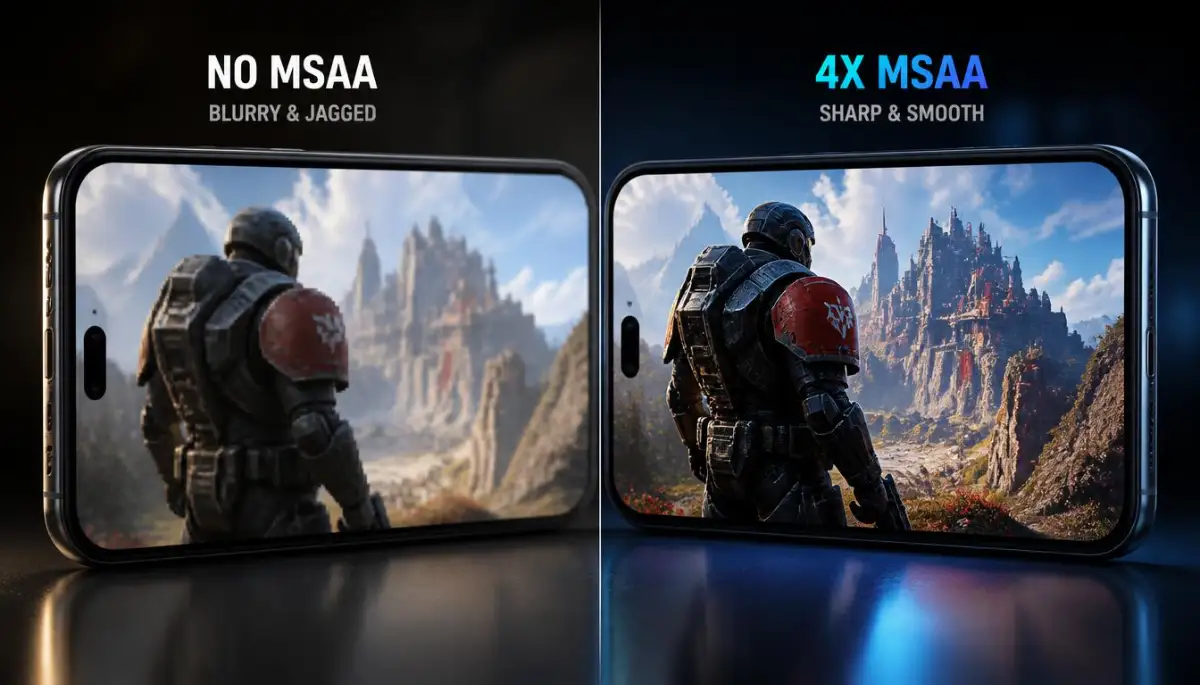
- Better Gaming: Turn on 'Force 4x MSAA' if you want your mobile games to look sharper and play smoother.
By the time it opens, the moment is gone forever. This loss of control over our own tools makes us feel helpless and frustrated.
We often blame our internet or our service provider. However, the real issue is usually hidden deep within the software itself.
It is exhausting to wait for apps to switch or for the keyboard to pop up when you are in a hurry. This constant micro-waiting adds up to hours of lost productivity over a month.
Your mental peace is valuable. A glitchy phone acts like a constant pebble in your shoe, making every step of your day more difficult.
While there might be some truth to that, you actually have more power than you think. You do not need to be a computer scientist to fix this.
There is a secret door inside your phone that most users never even touch. Once you open it, you can take back control of how your device behaves.
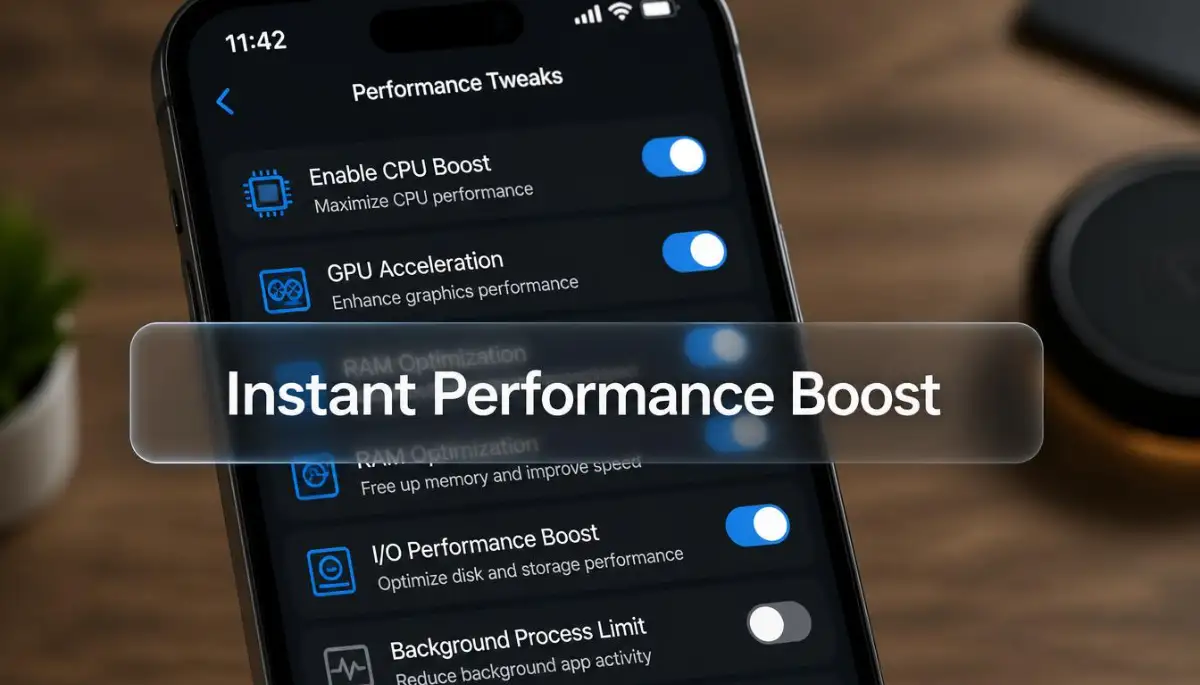
Unlocking the Secret Door: How to Access Developer Options
The first thing you need to know is that your phone has a "God Mode" hidden in plain sight. Manufacturers hide this menu because it contains powerful settings that can change how the system runs.
| Feature Setting | What it normally does | My Recommended Tweak | Why do this? |
| :--- | :--- | :--- | :--- |
| Animation Scales | Plays a pretty 1-second video | Set to 0.5x | Makes apps pop open instantly |
| Background Limits | Keeps 20+ apps running | Limit to 3-4 apps | Saves battery and stops lag |
| GPU Rendering | Uses CPU for everything | Force GPU use | Makes scrolling buttery smooth |
I was nervous the first time I tried to find it. I thought I might break something or void my warranty.
The truth is, as long as you know what to toggle, it is perfectly safe. To start this journey, open your phone's main Settings menu.
Scroll all the way down until you see "About Phone." Inside this menu, look for something called the "Build Number."
Now, here is the fun part. You need to tap that Build Number seven times in a row.
It feels like a secret handshake. After a few taps, a small message will pop up saying, "You are now a developer!"
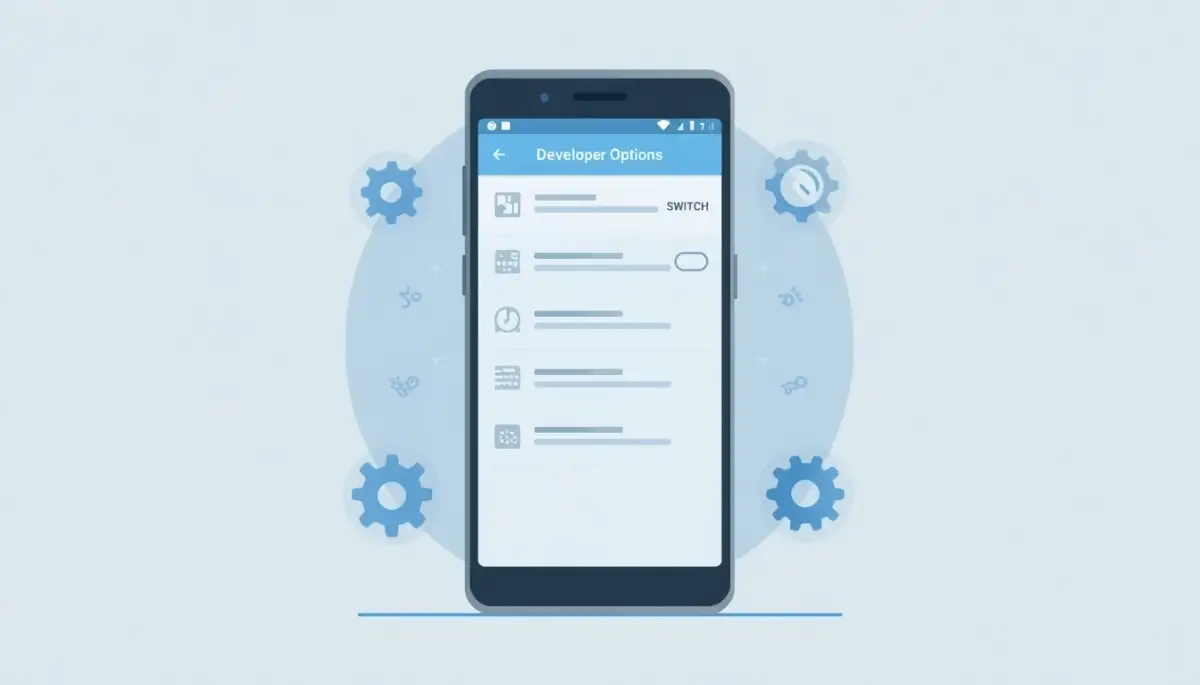
Now, go back to the main Settings page or the System menu. You will see a new entry called "Developer Options" that wasn't there before.
The Magic of Animation Scales
This is my favorite trick because the results are instant. Have you ever noticed how windows "slide" or "fade" when you open an app?
Those are called animations. They look pretty, but they take time to complete.
Inside Developer Options, scroll down until you find three specific settings. They are: Window animation scale, Transition animation scale, and Animator duration scale.
Usually, these are set to "1x." This means the phone is programmed to play the full animation.
I tried turning mine down to "0.5x," and the difference was like night and day. Everything felt twice as fast because the phone wasn't wasting time showing me fancy transitions.
If you want it to feel even faster, you can turn them off completely. It makes the phone feel incredibly snappy, almost like it’s jumping between apps.
Pro Tip:
I once made the mistake of changing too many things at once. I highly suggest changing one setting at a time and seeing how your phone feels for a few minutes. If you change ten things and something goes wrong, you won't know which one caused the issue.
Managing Your Phone's Brain: Background Process Limits
Think of your phone’s processor like a chef in a kitchen. If the chef is trying to cook twenty meals at once, everything slows down.
Your phone does the same thing by keeping dozens of apps "alive" in the background. Even if you aren't using them, they are eating up your resources.
In the Developer Options menu, look for "Background process limit." By default, it is set to "Standard limit," which lets the phone decide.
You can change this to "At most 2 processes" or "At most 3 processes." This tells your phone to focus its energy on only what you are actually doing right now.
When I tried this, my battery life actually improved along with the speed. My phone stopped getting hot during normal use.
It is important to remember that this might close apps you use frequently. But for older phones, this is a lifesaver that keeps the UI smooth.
Watch this video to see exactly how to navigate these menus safely and effectively.
Boosting Graphics with Force 4x MSAA
If you enjoy playing games on your phone, you might notice some jagged edges on graphics. There is a setting called "Force 4x MSAA" that can help.
This stands for Multi-Sample Anti-Aliasing. It forces the phone to use more of its graphics power to smooth out images.
It makes games look much higher quality without needing a new phone. However, keep an eye on your battery when you turn this on.
It asks the phone to work harder, so it might drain your power faster. I usually turn this on only when I know I'll be gaming for an hour.
Quick Speed Test: Before you change anything, open your Settings app. Now, change the animation scale to 0.5x and open Settings again. Do you see that? That's the instant speed boost I'm talking about. It’s not a trick; you’re just cutting out the wait time the factory put there.
It is a great example of how hidden android developer options that can improve performance are tucked away. Most people pay for "gaming phones" when their current phone can already do this.
The Truth About GPU Rendering
Your phone has two main engines: the CPU and the GPU. Usually, the CPU handles the heavy lifting for the apps.
But the GPU is much better at drawing things on the screen. There is a setting called "Force GPU rendering."
By turning this on, you tell the phone to use its graphics chip to draw the user interface. This takes the load off the main "brain" of the phone.
I found that this made my scrolling in apps like Facebook and Instagram much smoother. No more "stuttering" as you scroll through your feed.
It is a simple toggle that can breathe new life into a device that feels sluggish. It shows how software settings can often solve hardware frustrations.
Why Don't Manufacturers Enable This by Default?
You might be wondering why these aren't just the standard settings. The reason is that manufacturers want a balance of beauty and battery.
They want the animations to look "silky" even if it takes an extra half-second. They also want to make sure every single app stays open forever, even if it slows you down.
By using developer options, you are telling the phone that you prefer speed over "eye candy." You are choosing utility over style.
This is your device, and you should be the one to decide how it works. Taking these steps is like tuning an engine in a car.
A stock car is fine for most people. But a tuned car performs exactly how the driver wants it to.
The Importance of System Tracing
If you want to go really deep, look at "System Tracing." This is a tool that records how your phone uses its power.
Most of us don't need the actual logs. But inside this menu, there is an option to "Clear saved traces."
Sometimes, these old logs take up space and clutter the system's memory. Clearing them can give the phone a fresh start without losing any of your photos or messages.
I try to do this once a month. It feels like giving my phone a quick "digital shower."
It keeps the internal filing system neat and tidy. A clean system is always a fast system.
Dealing with RAM: The Logger Buffer Sizes
Another technical-sounding setting is the "Logger buffer size." This is basically the amount of data the phone keeps in a "waiting room" for the processor.
By default, it might be set to 256K. If you increase this to 4MB or 16MB, you give the phone more breathing room.
This can help with audio stuttering or lag when switching between heavy apps. I noticed that my music apps stopped crashing when I increased this size.
It is a small change that helps the phone handle data more efficiently. Again, it is all about making the "chef" in the kitchen more organized.
The more organized the data, the faster the phone can serve it to you. This is one of the most underrated hidden android developer options that can improve performance.
Disabling Absolute Volume for Better Sound
Performance isn't just about speed; it's about how the device works for you. Some people find that their Bluetooth headphones are too quiet or too loud.
There is a setting called "Disable absolute volume." If you toggle this, it separates your phone's volume from your Bluetooth device's volume.
This gives you much finer control over your sound. It might not make the CPU faster, but it makes the user experience much smoother.
I use this because my earbuds used to be way too loud at the lowest setting. Fixing this small annoyance made me love using my phone again.
Small wins like this contribute to an overall "fast" and "responsive" feeling. When a phone works exactly how you want, it feels faster.
The Reality of "Hardware Overlays"
When your phone shows a pop-up or a notification, it uses something called "overlays." This requires a lot of processing power to keep everything layered correctly.
In Developer Options, you will find "Disable HW overlays." Turning this on forces the phone to use the GPU for these layers.
This is another way to save the CPU from doing unnecessary work. It can make the overall navigation feel much more fluid.
I found that my notification shade stopped lagging when I changed this. It is these tiny changes that add up to a big difference.
Your phone is a complex machine. Giving it these small "helpers" makes its job so much easier.
Stay Safe While Exploring
It is easy to get carried away when you see so many buttons. My advice is to avoid anything that mentions "Mock locations" or "OEM unlocking" unless you really know what you are doing.
Those settings are for people who build apps or change the entire operating system. For performance, stick to animations, background limits, and GPU settings.
If you ever feel like you messed something up, don't panic. There is a master switch at the top of the Developer Options menu.
Just turn the main switch to "Off," and everything will go back to exactly how it was before. This is your safety net.
Knowing you can always "undo" everything makes it much easier to experiment. You have nothing to lose and a much faster phone to gain.
Creating a Habit of Maintenance
I don't just set these and forget them. Every few weeks, I go back and check if a system update changed my settings.
Sometimes, an update will reset your animation scales back to "1x." It only takes ten seconds to change them back.
Keeping your phone fast is a small commitment. It is like keeping your desk clean so you can work better.
You deserve a phone that keeps up with your life. You don't have to settle for the slow settings the factory gave you.
Unlock those options, make those changes, and feel the difference for yourself. You will be amazed at how much power was hiding under the surface all along.
Your phone isn't old; it’s just waiting for you to tell it to run faster. Take that step today and stop the lag for good.
Mastering the Deep Settings for a Flawless Experience
Once I saw how much faster my animations became, I realized I was only scratching the surface. It felt like I had found a hidden map to a treasure chest inside my own pocket.
I started wondering what else I could change to make my daily life even easier. My phone used to feel like a burden, but now it was starting to feel like a high-performance tool.
I want to share the more advanced secrets I discovered after weeks of testing. These are not just about speed; they are about making the phone work exactly the way your brain does.
One of the most powerful things you can do is adjust how your phone handles data in the background. I noticed that my internet felt slow even when my Wi-Fi signal was strong.
I found a setting called "Mobile data always active" inside the developer menu. Usually, your phone turns off mobile data when you connect to Wi-Fi to save battery.
But this causes a small delay when you leave your house and switch back to 4G or 5G. By keeping this toggled on, the switch happens instantly without any "loading" screen.
It makes the transition from home to the outside world feel seamless and lag-free. This is very helpful if you are often on video calls while moving between different locations.
Managing Your Phone's Memory Like a Pro
I used to think that having more apps open was better, but my phone’s memory disagree. Your RAM is like a physical desk where your phone does its work.
If the desk is covered in old papers, there is no room for new tasks. I found a way to manage this using the "Running services" option.
This screen shows you exactly which apps are eating your memory right this second. I was shocked to see that some simple apps I hadn't opened in days were still running in the background.
By seeing this, I was able to identify the real "memory hogs" and delete them. It is very similar to how why hosting server location can make or break your website speed works for the internet.
Just like a server needs to be close to the user, your phone's memory needs to be close to the task you are doing. If the memory is busy with useless background apps, your main task will suffer.
I started checking this menu once a week just to keep things tidy. It gave me a sense of clarity and control that I never had before.
Boosting Web Browsing and App Loading Times
Have you ever noticed that some websites take forever to load even on a fast connection? Part of the problem is how your phone processes the data it receives.
There is a setting called "Wi-Fi scan throttling" that is usually turned on to save battery. However, this can sometimes limit your connection speed during heavy browsing.
I tried turning this off for a day to see what would happen. My browser felt much more responsive, and images popped up almost instantly.
I also found that beyond automation how creatives and ai work better together is a great way to think about your phone. You are the creative pilot, and the phone's settings are the automation helping you fly.
If the automation is too strict, it holds you back. By loosening these technical "belts," you allow the phone to breathe and perform at its peak.

Why Hardware Acceleration is Your Best Friend
I spent a long time trying to understand why my phone struggled with high-definition videos. It turns out the main processor was doing all the work instead of sharing it with the graphics chip.
Inside the developer menu, I found "Tethering hardware acceleration." This allows the phone to use specialized hardware to speed up data transfers.
It is like hiring a specialist to do a job instead of asking a general worker to do everything. When I turned this on, my phone stopped getting hot when I shared my internet with my laptop.
Another great setting is "Force 4x MSAA," which I mentioned earlier but for a different reason. I found that it doesn't just help games; it makes the entire interface look sharper on high-resolution screens.
It feels like putting on a new pair of glasses. Everything looks crisp, clear, and very professional.
The Hidden Dangers of Making Technical Errors
I have to be honest with you; I almost ruined my phone once because I got too confident. I started clicking things without reading what they actually did.
I turned on a setting that changed how my screen touches worked. Suddenly, I couldn't even swipe to unlock my device.
I felt a wave of panic wash over me as I thought I had locked myself out forever. My heart was racing as I tried to remember how to reset the settings.
This is the biggest mistake people make: they change too many things at once. It is very similar to how why first time personal loans fail and how to fix it because of poor planning.
If you don't have a plan, you will end up in a mess that is hard to fix. You must be patient and move slowly through these menus.
Another big error is leaving "USB Debugging" turned on when you are using a public charging station. This opens a "backdoor" to your phone that hackers can use to steal your data.
I always tell my friends to turn this off the second they are done using it. It is not worth the risk just to save a few seconds later.
Privacy is just as important as speed. I learned this the hard way after a strange app tried to access my contacts.
Protecting Your Device from Internal Burnout
We often talk about people getting tired, but phones can suffer from a type of "burnout" too. When a phone runs at 100% all the time, the battery and internal parts wear out faster.
I noticed my phone battery was dropping fast after I turned on every single speed setting. I realized I needed a balance.
This reminded me of overcoming college burnout real recovery strategies for high achievers. Just like a student can't study 24/7, a phone can't run at full speed without a break.
I decided to only keep the settings on that gave me the biggest "bang for my buck." I kept the animation speeds at 0.5x but turned off some of the heavier background forcing.
This balance allowed me to have a fast phone that still lasted the whole day. It is all about making simple household swaps to shrink your plastic footprint easily for your digital life.
Small, smart changes are better than one giant, risky change. You want a phone that is fast today and still works perfectly two years from now.
The Psychology of a Snappy Interface
There is a strange mental shift that happens when your tech works perfectly. When my phone stopped lagging, I found myself feeling less stressed during my workday.
I wasn't fighting with my device anymore. Instead, it felt like an extension of my own hand.
I realized that we spend so much time looking at these screens that even a tiny delay affects our mood. A slow phone makes you feel like you are walking through mud.
A fast phone makes you feel like you are flying. I started being more productive because I wasn't getting distracted by "loading" bars.
It is amazing how a few hidden settings can change how you feel about your entire day. I want everyone to feel that sense of ease when they pick up their device.
Keeping Your Phone Fast for the Long Term
Speed is not a "one-time" thing; it requires a little bit of maintenance. I like to call this "digital gardening."
Every month, I go into my developer options and double-check my animation scales. Sometimes system updates will try to reset them to the slower defaults.
I also clear my "System Trace" logs to make sure no junk data is filling up my storage. It takes less than two minutes, but it keeps the phone feeling fresh and new.
I also make sure to block smart tv tracking simple settings to change right now to keep my whole home network fast. If your other devices are hogging the Wi-Fi, even a fast phone will feel slow.
Everything in your digital world is connected. By taking care of your phone, you are taking the first step toward a faster life.
Your New Digital Reality Awaits
You now have the keys to a much faster and more responsive Android experience. It might feel a bit technical at first, but I promise it becomes second nature very quickly.
I went from being frustrated and ready to buy a new phone to being totally happy with my current one. I saved money, and more importantly, I saved my sanity.
Don't be afraid to explore, but always remember to stay safe and move one step at a time. Your phone has so much more power than the factory settings suggest.
Go ahead and tap that "Build Number" seven times. Open the door to a better experience and see what your device can really do.
I am so excited for you to feel that first "click" when your apps open instantly. It is a small joy that makes a huge difference in our tech-filled lives.
My own journey taught me that we don't have to accept things just as they are. With a little curiosity and some careful clicking, you can build the perfect digital experience for yourself.
I truly hope these tips help you as much as they helped me. You have the power to stop the lag and start enjoying your tech again right now!
Common Questions About Android Performance
Will these settings void my phone's warranty?
No, changing settings within the Developer Options menu does not void your warranty. These are official features built into the Android system by Google for testing and optimization. You can always turn them off if you ever need to take your phone in for a repair.
Does turning off animations hurt my phone's battery?
Actually, it usually helps your battery life a little bit. Since the phone doesn't have to spend energy rendering fancy visual effects, it uses less power every time you open an app. It is a win-win situation for both speed and longevity.
What should I do if my phone starts acting weird after a change?
Don't worry at all! Simply go back into the Developer Options and flip the main switch at the top to "Off." This will instantly reset every single change you made back to the factory defaults. Your phone will return to exactly how it was before you started.
Can I use these settings on any Android tablet too?
Yes, these hidden features work on almost every Android device, including tablets and even some smart TVs. The steps to unlock the menu are exactly the same. It is a great way to speed up an older tablet that you might have laying around.
Is it safe to leave Developer Options unlocked?
It is perfectly safe to keep the menu visible as long as you don't turn on "USB Debugging" when you are away from home. The menu itself doesn't do anything unless you change a setting. I keep mine unlocked all the time so I can quickly tweak my animation speeds.
Disclaimer: This guide is for informational purposes only. While these settings are safe for most users, changing advanced system features is done at your own risk. Always make sure to back up your important data before making significant changes to your device software.