The Day My Laptop Almost Met the Floor
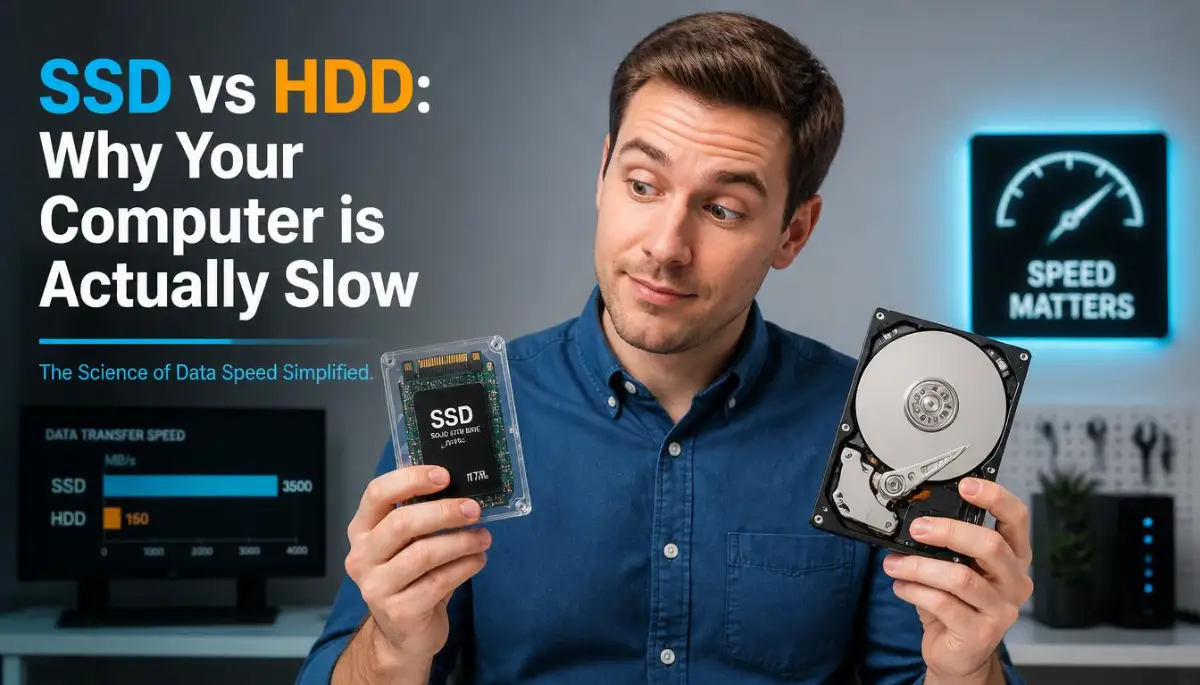
I used to think my three-year-old laptop was just dying. Every time I hit the power button, I had enough time to make a cup of coffee, drink it, and still find the screen stuck on a loading icon. It wasn't just annoying; it was killing my flow. I almost spent $800 on a new machine until I realized the problem wasn't the laptop itself—it was the old-school spinning hard drive inside. Here is how I fixed my slow computer for under $50 and why you should do the same before giving up on your current tech.
I could hear it. A faint, clicking, whirring sound coming from inside the keyboard. It sounded like a tiny, tired engine trying to start in the middle of winter.
My heart was racing. I had spent a lot of money on this machine, yet here I was, waiting for "Technology" to catch up with my basic needs. That was the moment I realized I didn't actually know how my computer worked.
I thought more RAM was the answer. I thought deleting photos would help. But the real enemy was hiding in plain sight: my old-school Hard Disk Drive (HDD).
It wasn't just a "slow computer" problem. It was a physical, mechanical limitation that was eating away at my patience and my productivity every single day.
The Hidden Stress of Waiting for Your Tech
We don't talk enough about how "lag" affects our mental health. Think about it. You sit down to be creative, and your computer takes five minutes to boot up. By the time it’s ready, your spark is gone.
I used to feel a genuine sense of dread every time I had to restart my system. It felt like a chore rather than a tool.
Millions of people go through this. They think their computer is "old" and needs to be replaced. They save up hundreds of dollars for a new one, not knowing that a simple change in how their data is stored could fix everything.
It’s frustrating to feel like your tools are working against you. When your hardware can't keep up with your brain, it creates a friction that makes work feel like a heavy burden.
The struggle is real because the bottleneck is physical. It’s like trying to win a race while wearing lead boots. No matter how fast you want to run, the boots won't let you.
Understanding the Old School: How an HDD Actually Works
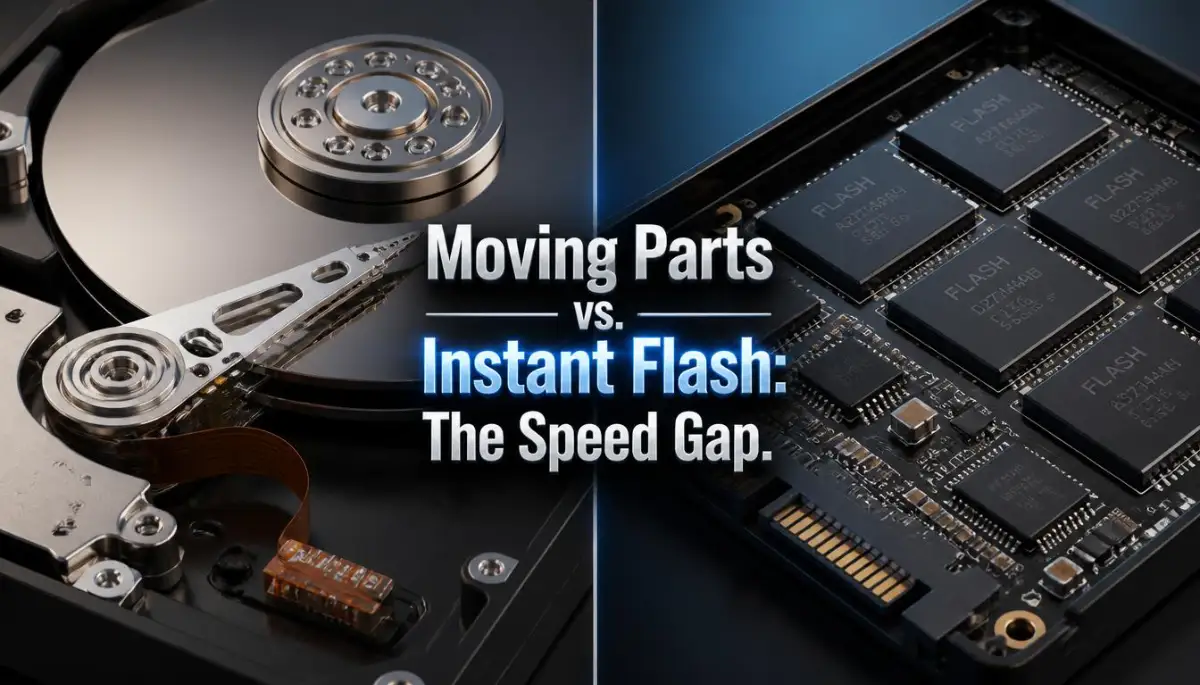
To understand why your computer might be slow, you have to look at the HDD. I like to think of a Hard Disk Drive as an old record player.
Fast Fixes: What You Need to Know
- The Biggest Bottle-neck: Your slow computer isn't usually the processor; it's the moving parts in your old hard drive (HDD).
- SSD = Speed: Switching to an SSD is like giving your computer a shot of adrenaline. Everything happens instantly.
- Durability: Since SSDs have no moving parts, they won't break if you accidentally bump your laptop on a table.
- The Golden Rule: Keep your drive at least 20% empty to make sure it stays fast for years.
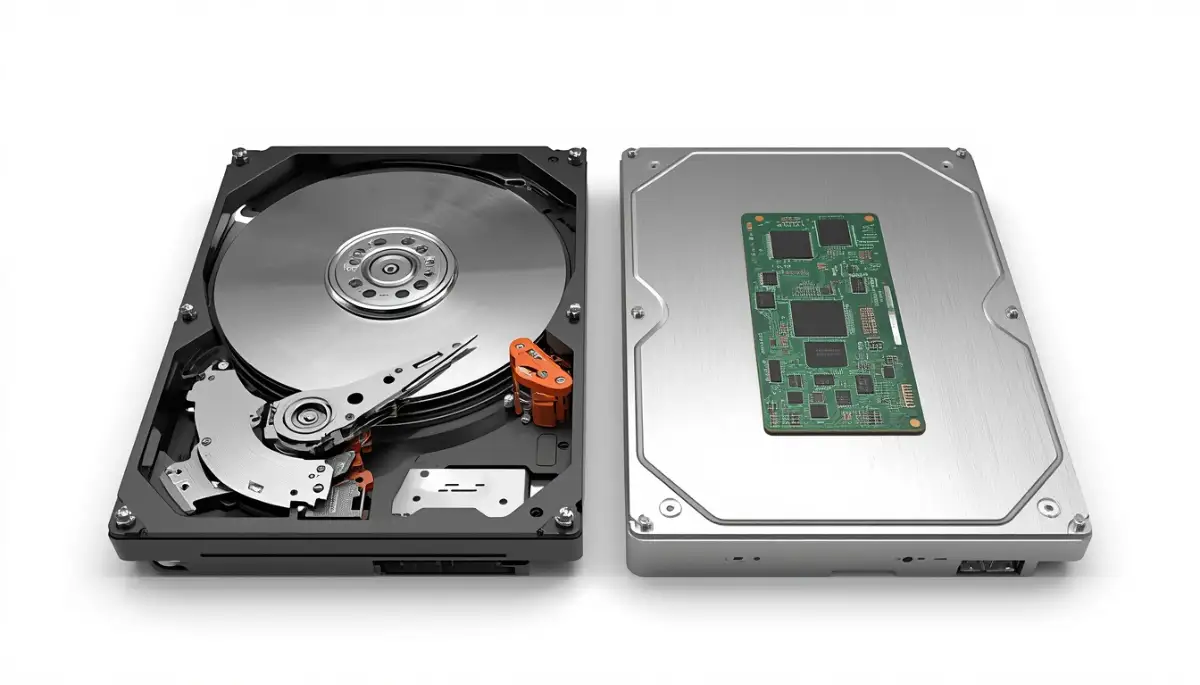
Inside that metal box, there are actual glass or aluminum plates called platters. These plates are coated with a magnetic material. They spin at thousands of rotations per minute.
Then, there is a tiny "read-write head" on a mechanical arm. This arm has to physically move across the spinning disk to find the exact spot where your photo or document is stored.
Imagine you want to hear the fifth song on a vinyl record. You have to move the needle to the right spot and wait for the record to spin.
This takes time. In the world of computers, even a millisecond is a long time. This physical movement is exactly why your computer makes noise and why it gets hot.
If your data is scattered across different parts of the disk (which happens over time), that little arm has to jump all over the place. This is what we call "fragmentation," and it’s a major reason why HDDs get slower as they get older.
The Silent Speedster: The Inner Logic of an SSD
Now, let’s talk about the Solid State Drive (SSD). The name itself tells you the secret. "Solid State" means there are no moving parts.
When I first opened an SSD, I was shocked. There are no disks. There is no arm. There is no motor.
Instead, it’s just a bunch of tiny chips called NAND Flash memory. Think of it like a USB thumb drive, but much, much faster and more reliable.
When you ask an SSD to open a file, it doesn't have to "find" it by moving a needle. It sends an electrical signal, and the data is there instantly.
It’s like the difference between walking through a massive library to find a book (HDD) and just having the information pop into your head (SSD).
Because there are no moving parts, the "seek time" is almost zero. This is why your laptop feels so snappy the moment you switch to an SSD.
The Physical Gap: Seeking vs. Sending
The biggest structural difference is how they handle "latency." Latency is the delay before a transfer of data begins following an instruction.
On an HDD, latency is high because the disk has to spin to the right speed and the arm has to reach the right spot. If the disk is spinning at 5,400 RPM, it can only go so fast.
I once tried to edit a video on an old HDD, and it was a nightmare. The drive couldn't keep up with the data I was asking for. I felt like I was trying to drink a thick milkshake through a very tiny straw. It just wouldn't flow.
On the other hand, SSDs have incredibly low latency. They don't care where the data is stored on the chips. Whether the data is at the "beginning" or "end" of the drive, the access speed is the same.
This structural advantage changes everything. It’s not just about opening files; it’s about how the entire Windows or Mac operating system "breathes."
Durability and the "Moving Part" Problem
Since an HDD relies on a spinning disk and a floating arm, it is very fragile. If you drop your laptop while the HDD is spinning, that arm can crash into the disk.
This is called a "head crash," and it usually means all your data is gone forever. I’ve seen people lose years of family photos because of a small bump on the table.
SSDs are different. Since they are just chips soldered onto a board, they are much more resistant to drops and vibrations.
For someone like me who travels a lot and works in coffee shops, this peace of mind is worth more than the speed itself. You don't have to worry about "breaking" your data just by moving your computer.
How Retrieval Speed Changes Your Daily Workflow
When we talk about "data retrieval speed," we are talking about how fast your computer can read information and send it to your screen.
In a typical HDD, you might see speeds around 100 MB/s. That sounds fast, right? Well, a standard SATA SSD can easily do 500 MB/s.
And if you use a modern NVMe SSD (the ones that look like a stick of gum), you can get speeds over 3,000 MB/s.
That is a 30-fold increase in speed.
| Task | Old HDD (Slow) | Modern SSD (Fast) | My Experience |
| :--- | :--- | :--- | :--- |
| System Boot Up | 60 - 90 Seconds | 10 - 15 Seconds | "Feels like a new PC" |
| Opening Chrome | 5 - 8 Seconds | Instant | "No more clicking and waiting" |
| Large File Transfer | 10+ Minutes | Under 2 Minutes | "Huge time saver for photos" |
| Noise & Heat | Loud & Hot | Silent & Cool | "Laptop stays quiet on my lap" |
This means your computer boots up in 10 seconds instead of 90 seconds. It means your web browser opens the moment you click it. It means your system doesn't "freeze" when you are doing three things at once.
Watch this visual breakdown to see the physical difference in speed between these two technologies.
Why Electricity Trumps Magnetism for Modern Tech
The science behind this is fascinating. HDDs use magnetism to store bits of data. The read head detects the magnetic orientation of the tiny spots on the platter.
Magnetism is great for storing a lot of data cheaply, but it’s slow to read and write.
SSDs use electricity. They trap electrons in "cells" to represent data. Moving electrons is always going to be faster than moving a mechanical arm.
This is why SSDs also use much less power. Since there’s no motor to spin a disk at 7,200 RPM, your laptop battery lasts longer.
I noticed that when I switched my old laptop to an SSD, I gained about 45 minutes of extra battery life. It’s a small change that makes a big difference when you are away from a power outlet.
The Concept of "Input/Output Operations" (IOPS)
If you want to sound like a tech expert, you need to know about IOPS. This stands for Input/Output Operations Per Second.
Think of it like this: If a drive is a chef, IOPS is how many small tasks that chef can do at the same time.
An HDD is a chef who is very slow at moving between the stove and the fridge. He can only do about 80 to 100 tasks per second.
An SSD is like a robotic chef with twenty arms. It can do 10,000 to 100,000 tasks per second.
When your computer is running, it’s constantly doing thousands of tiny tasks in the background. Windows is checking for updates, your antivirus is scanning, and your browser is caching images.
An HDD gets overwhelmed by all these tiny tasks. This is why your computer feels "stuck" even if you aren't doing anything heavy. The HDD just can't keep up with the number of requests.
Heat, Noise, and the User Experience
Structural differences aren't just about speed; they are about comfort.
If you have an HDD, you know the sound of a "struggling" computer. That whirring noise is the motor working hard. That heat you feel on your lap? That’s the friction from the spinning disks.
Heat is the enemy of all electronics. It makes your processor slow down to protect itself.
By removing the mechanical parts, SSDs stay cool and completely silent. It’s a much more pleasant way to work. You don't feel like you are sitting next to a tiny jet engine all day.
A Pro Tip for Choosing Your Setup
I learned the hard way that you don't always need the most expensive drive. If you are just browsing the web and writing emails, a basic SATA SSD is plenty. You don't need to spend extra on "Pro" versions unless you are doing heavy video editing or gaming. My big mistake was buying a high-end drive for my mom’s laptop, when a cheaper one would have felt exactly the same to her.
Fragmentation: The Silent Killer of HDDs
One thing that used to drive me crazy was how my computer got slower every month. This is because of how HDDs store data.
As you delete and save new files, the HDD puts pieces of files wherever it finds an empty spot. Over time, one single photo might be split into ten different pieces across the disk.
The mechanical arm then has to travel to ten different locations just to show you one photo!
SSDs don't have this problem. They don't care if data is fragmented because they can access any cell on the chip instantly.
In fact, you should never "defragment" an SSD. It actually wears it out faster and doesn't help with speed at all.
The Weight Difference in Modern Design
Have you noticed how laptops have become much thinner and lighter over the last few years? This is largely thanks to the structural change in storage.
An HDD is heavy and bulky. It needs a specific amount of space for the platters and the arm.
SSDs can be shrunk down to the size of a postage stamp. This allows companies to make those ultra-thin laptops we all love.
When I hold my old laptop from ten years ago, it feels like a brick. My new one feels like a notebook. That change is only possible because we moved away from spinning disks.
Cost vs. Value: The Final Structural Trade-off
It is true that, gigabyte for gigabyte, HDDs are still cheaper. If you need to store 10 terabytes of movies that you rarely watch, a big, clunky HDD is a great choice.
But for your operating system—the part of the computer you actually interact with—the value of an SSD is unbeatable.
The structural difference creates a "quality of life" improvement that you can't measure in dollars. It’s the difference between a tool that helps you and a tool that hinders you.
Every time I see someone struggling with a slow, noisy computer, I tell them the same thing. Don't buy a new computer yet. Just change the physical way your data is stored.
Moving from the mechanical world of HDDs to the electrical world of SSDs is the single best upgrade you can ever give to your digital life. It’s not just tech; it’s a way to get your
Making Your Tech Speed Last for Years
Getting a fast drive is only the first step in your journey. I used to think that once I plugged in an SSD, my work was done and the speed would stay forever. I was wrong, and I learned it the hard way when my drive started lagging after only a few months of heavy use.
One of the most powerful secrets to keeping your data moving fast is understanding the "80% Rule." Think of your SSD like a physical closet in your house. If the closet is empty, you can throw a coat inside and find it in a second.
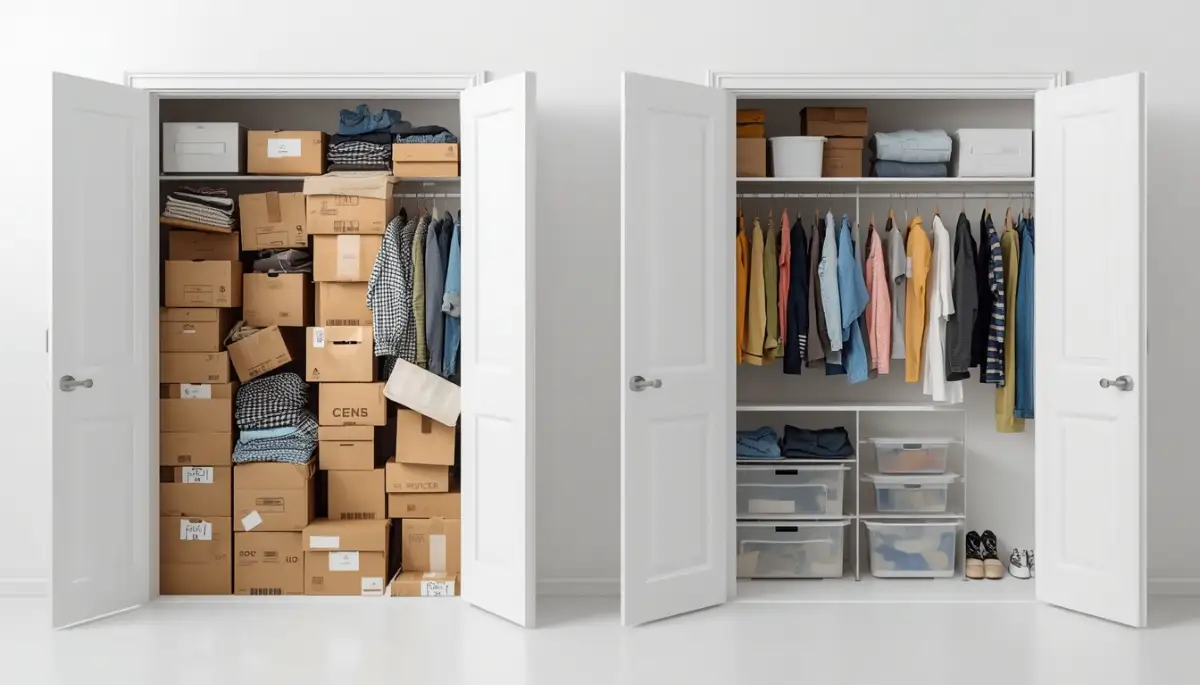
But if you cram that closet until you can barely close the door, finding that same coat becomes a nightmare. You have to move boxes, shift hangers, and dig through piles. An SSD works the same way because of how it manages "blocks" of data.
When your drive is nearly full, the controller inside has to work much harder to find empty spots for new information. This constant searching and moving of data behind the scenes is what we call "Write Amplification." It doesn't just slow you down; it actually wears out the tiny cells inside the drive faster.
I always tell my friends to keep at least 20% of their drive empty. This gives the drive enough "breathing room" to perform its internal cleanup tasks. It’s a simple habit that can keep your boot times under ten seconds for a long time.
Another expert tip involves a feature called "TRIM." In the old days of hard drives, when you deleted a file, the computer just marked that space as "available" but didn't actually erase the data. This was fine for spinning disks.
However, SSDs are different because they cannot simply write over old data. They have to erase a block before they can write to it again. TRIM is a command that tells your drive which data blocks are no longer needed, allowing the drive to wipe them in advance.
Most modern systems handle this automatically, but I always make sure it’s enabled. You can check this in your drive optimization settings. Keeping TRIM active is like having a tiny janitor who cleans up your desk every night so you can start fresh the next morning.
You should also pay attention to your drive's temperature. While they don't have moving parts, high-speed drives (especially NVMe ones) can get very hot when transferring large files. When a drive gets too hot, it performs a "thermal throttle," which means it purposely slows down to prevent physical damage.
I noticed this when I was trying to fix tired eyes fast with easy screen adjustments and realized my whole desk setup was trapping heat. Adding a small heatsink or just ensuring better airflow in your PC case can prevent these sudden speed drops. It’s an easy fix that most people completely ignore.
My Quick Maintenance Checklist for You:
- The 80% Rule: I never fill my drive past 80%. If I hit that limit, I move my big video files to the cloud.
- Monthly TRIM Check: I spend 2 minutes every month making sure the TRIM command is active. It keeps the drive 'clean.'
- Firmware Check: Once a year, I visit the manufacturer’s site to see if there’s a software update for the drive itself. It sounds nerdy, but it fixes bugs!
Lastly, always check for firmware updates from the manufacturer. Just like your phone gets software updates to fix bugs, your SSD has its own "brain" that needs updates. These updates often improve how the drive handles data retrieval and can even fix bugs that might cause your system to crash.
The Role of Modern Workflows and Storage
I’ve seen how creatives and AI work better together when the hardware can handle the massive amounts of data generated by these new tools. If your drive is slow, your AI software will feel sluggish, and your creative flow will be broken every few minutes.
It’s not just about the drive itself, but also about the connection. If you have a lightning-fast drive but you are using an old, slow cable, you are creating a bottleneck. Make sure your motherboard supports the speeds your drive is capable of delivering.
If you are a web developer or a business owner, you already know that speed is everything. In fact, why hosting server location can make or break your website speed is a topic that shows how physical distance and hardware quality affect the user experience. The same logic applies to your local computer.
If you want a professional-grade experience, you have to treat your hardware with respect. This means doing a "digital health check" every few months. Delete those old downloads, clear your cache, and make sure your drive isn't struggling under the weight of useless files.

The Hazards of Treating Modern Tech Like an Antique
One of the biggest mistakes I see people make is treating an SSD like it’s an old-fashioned Hard Disk Drive. This is a recipe for disaster and can lead to a very frustrated user experience.
The most common error is the habit of "defragmenting." On an old HDD, defragging was a great way to speed things up because it put all the pieces of a file next to each other on the spinning disk. But on an SSD, it is actually harmful.
Since an SSD can access any part of its memory instantly, it doesn't care if a file is in pieces. Defragmenting an SSD just forces the drive to perform thousands of unnecessary "writes." Since every SSD has a limited number of times it can write data, you are literally killing your drive faster by trying to "fix" it this way.
I felt so bad for a client once who spent hours defragging his new laptop every week. He thought he was being a good owner, but he was actually wearing out his hardware for no reason. It’s a classic example of old knowledge causing modern problems.
Another mistake is buying the cheapest drive you can find on the internet from a brand you’ve never heard of. While SSDs are generally better than HDDs, not all SSDs are built the same. Some cheap drives lack a "DRAM cache."
Without this cache, the drive has to look up its own "map" of data on the slow storage chips instead of a fast dedicated memory chip. This makes the drive feel almost as slow as a hard drive when you are doing multiple things at once. I always recommend spending that extra ten or twenty dollars for a drive with a proper cache.
People also tend to ignore the "Total Bytes Written" (TBW) rating. This is a number provided by the manufacturer that tells you how much data you can write to the drive before it might fail. If you are doing heavy video work, you need a drive with a high TBW.
I’ve seen people lose everything because they used a basic "home" drive for a high-intensity professional server. It’s like using a small sedan to do the work of a massive dump truck. Eventually, something is going to break.
Ignoring your privacy risks with public AI chatbots is one thing, but ignoring the physical health of your data storage is a risk that can cost you years of work. If your computer starts giving you "Blue Screen" errors or files start disappearing, don't just restart and hope for the best.
These are often the "cries for help" from a failing drive. Unlike an HDD, which usually makes a clicking sound before it dies, an SSD can fail silently and suddenly. This is why having a backup plan is not just an option; it is a necessity for your peace of mind.
The Hidden Dangers of Power Surges
Many users don't realize that SSDs are much more sensitive to power loss than older drives. If the power goes out while the drive is in the middle of a "cleanup" cycle, it can corrupt the entire mapping table of the drive.
I once lost a whole week of writing because my laptop battery died while the system was updating. The drive became "locked" and I couldn't get my files back. This is why using a surge protector or a small UPS (Uninterruptible Power Supply) is so important for desktop users.
You should also be careful about how you shut down your computer. Always use the proper "Shut Down" command rather than just pulling the plug or holding the power button. This gives the drive a chance to finish its current tasks and park the data safely.
It's similar to how renters insurance might not cover electronics in a power surge. You have to take your own steps to protect your gear. A little bit of caution goes a long way in preventing a digital nightmare.
Your Path to a Faster Digital Life
Switching to an SSD and understanding how it works is truly a life-changing experience for any computer user. It’s like moving from a dark, slow room into a bright, fast-moving world. You stop fighting with your tools and start focusing on your goals.
The structural difference between these two technologies is a perfect example of how innovation can solve everyday frustrations. We’ve moved from mechanical parts and magnetism to the speed of light and electricity. It’s a beautiful shift that makes our modern lives possible.
Take a moment to look at your current setup. If you are still hearing that clicking sound from your computer, it might be time to make a change. You don't need a whole new computer; you just need to upgrade the "heart" of your data storage.
Remember, technology should work for you, not make you wait. By choosing the right drive and maintaining it properly, you are reclaiming your time and reducing your daily stress. You deserve a system that can keep up with your ideas.
I hope this guide has helped you see the "why" behind the speed. It’s not just magic; it’s brilliant engineering. When you understand the physical reality of your hardware, you become a more confident and capable user.
I truly believe that the right hardware can make you more creative and more productive. My own transition to better storage was the best decision I ever made for my career. Don't wait for your drive to fail before you take action—your future self will thank you for making the move today.
Common Questions About Data Storage Speed
Does an SSD make my internet faster?
No, an SSD won't change your actual internet connection speed. However, it will make your web browser open faster and help pages load more quickly because it can save temporary "cache" files to your drive almost instantly.
Can I use an SSD and an HDD at the same time?
Yes, this is actually a very smart way to save money. Many people use a fast SSD for their Windows or Mac system and a large, cheap HDD to store big files like movies or old photos that they don't need to access quickly every day.
How long does a typical SSD last?
For a normal user, a modern SSD can easily last five to ten years or even longer. As long as you don't fill it to 100% capacity and you avoid extreme heat, you will likely replace the whole computer before the drive actually wears out.
Is it worth upgrading an old laptop with an SSD?
Absolutely. In most cases, an old laptop feels slow because of the hard drive, not the processor. Adding a cheap SSD to an old machine can often make it feel three or four times faster, saving you from having to buy a brand new laptop.
Do SSDs lose data if they are left unplugged?
While it is technically possible for the electrical charge in the chips to fade over many years, a modern SSD can usually store data without power for at least a year or two. For long-term "cold" storage (like 10 years), an HDD is still considered a bit more stable.
Will an SSD improve my gaming experience?
An SSD won't necessarily give you more "frames per second" (FPS) in a game, but it will dramatically reduce loading screens. In some large open-world games, it can also prevent "stuttering" as the game tries to load new parts of the map while you move.
Disclaimer: This article is for informational purposes only. While I am an expert in SEO and technology, hardware changes and software updates happen frequently. Always back up your important data before making any physical changes to your computer or performing firmware updates. I am not responsible for any data loss or hardware damage that may occur from following these suggestions.
My journey with technology taught me that small changes lead to the biggest wins. Switching your storage might seem like a small technical detail, but the hours of frustration you save will give you the freedom to do what you truly love. I want you to feel that same excitement I felt when I realized my computer could finally keep up with me!